How to plan controls for a phone and computer game before your first prompt
 Public
- 20 Nov, 2026
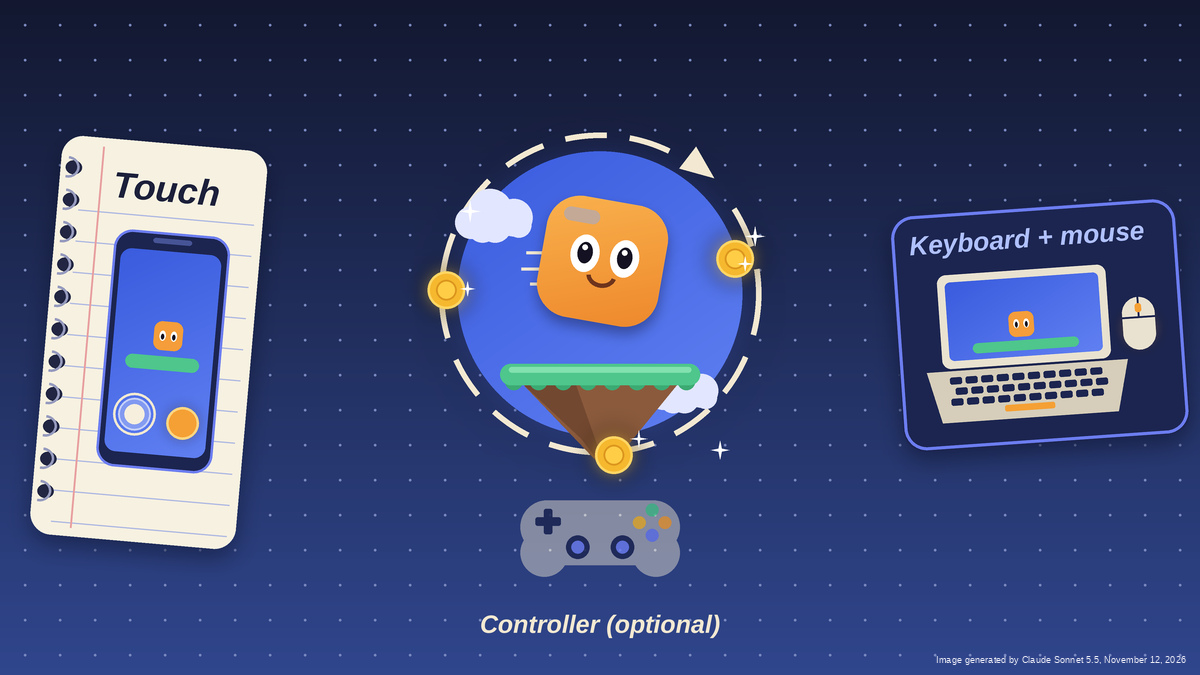
Controls are how players talk to a game, and they set the limits of what players can do in it. The same jump across a gap between floating platforms becomes a thumb tap on a phone, a spacebar press on a laptop, or a face button press on a controller. Each device changes how the action feels, what can be asked of the player, and how long a session lasts before hands get tired. Unity Spark, Unity's AI-native, browser-based game creation platform, lets creators describe a game in plain language without writing input code, but control decisions still have to be made up front.
Spark games run in a browser, so players will arrive on a phone, a desktop, or a laptop. That means two setups matter: touch, and keyboard plus mouse. A controller is an optional bonus: players must own one, and they still have to connect and set it up. The recommended first step is to list three to five actions, such as move, jump, aim, pick up, confirm, and only then assign devices. This mirrors the Unity Engine's Input System, which separates an action like "Jump" from the controls that trigger it and groups actions by context, for example walking versus driving.
Touch suits taps, drags, and short sessions, but thumbs cover the screen. The Xbox Accessibility Guidelines suggest touch targets of at least 15 mm by 15 mm on a phone, with enough spacing and empty margin that a slip doesn't trigger a neighboring button. Supporting both portrait and landscape orientation helps players who keep their phones mounted in a fixed position. Keyboards offer many keys and a mouse points precisely, so this pairing suits games with many actions or fast aiming. But keys have to be learned, so it's best to keep the list short. Anything done with the mouse should also be available from the keyboard. And it's better not to require fast, precise pointer movement: many people play on a laptop with a trackpad. If you support a controller, don't make players use both thumbsticks at once - even a shooter can offer a single-stick option.
Pick the main device, write it on the first line of the design brief, design for it, and then verify that the game works on the other one too. The Game Accessibility Guidelines recommend supporting more than one input device. Each action should be written once and mapped twice - for touch and for keyboard and mouse - and then checked for gaps: a pinch has no keyboard equivalent, and a hover has no touch equivalent. The Xbox guidelines recommend that a game can be operated without multi-point gestures, so every pinch needs a simple replacement, such as a zoom button. Button remapping helps but doesn't remove every barrier. One example is actions that require holding a button: a toggle that keeps a car from letting off the gas is equally useful for sprinting, firing, and repeated jumping.
Players will miss, slip, and tap the wrong thing, and a control that looks fine on paper can feel awkward in the hand. When testing the game on a phone and on a computer, track two types of problems separately: accidental inputs, where the game does something unintended, and missed inputs, where it doesn't respond to the player's action. To find the cause, change only one control at a time and replay.
The whole plan fits into a single sentence for the design brief: "In my game, players use ___ on a phone and ___ on a computer to ___." If you include this line in the first Spark prompt, the request will be clearer. After that, the result should be played on both devices to find the first control worth changing.